

Small photos can contain too few pixels for larger displays even when the crop, subject, and aspect ratio already fit the intended use. MKGPics AI PHOTO UPSCALER calculates a larger version of one opened image with AI and provides two fixed enlargement levels for width and height. The program shows the dimensions of the source and the intended output before processing begins, while Detail Strength can be adjusted from 0 to 100 percent after the enlarged version has been created.
Original, Result, Fit, and 100% views are available for inspection. The finished image is saved separately from the loaded source. One photo is processed at a time. After the required enlargement level has been selected, “Enlarge” starts the calculation and the status area reports its progress. The resulting image remains in the workspace once processing is complete. It can then be inspected at full-image scale or at actual pixel scale, and the source remains available for comparison. A running calculation can also be cancelled without turning an unfinished intermediate state into a completed result.
Enlarge a Photo to 2× or 4× with AI
Two scaling factors determine how much the side lengths increase. At 2×, width and height are doubled; at 4×, both dimensions are multiplied by four. A 1,500 × 1,000 pixel photo therefore becomes 3,000 × 2,000 pixels or 6,000 × 4,000 pixels when the full selected factor can be applied. Both axes use the same factor, so the aspect ratio remains unchanged. A separate target width or target height does not need to be entered manually.
The increase in total pixel count is much larger than the change in either side length alone. Doubling both dimensions produces four times as many pixel positions, while multiplying both sides by four produces sixteen times as many. The starting dimensions therefore have a major influence on the size of the final file. A small image and a high-resolution source can produce very different outputs even when the same enlargement setting is selected.
Check the Target Size Before Upscaling
The size panel shows the dimensions of the loaded source next to the dimensions planned for the next calculation. Changing the enlargement setting refreshes these numbers immediately. The values refer to the currently opened photo rather than to a generic example, so the expected width and height can be read before processing starts. If a size restriction applies, the displayed output dimensions already reflect that adjustment.
Selecting another size after a result already exists does not resize that result in place. The status area indicates that “Enlarge” must be started again, while the previously calculated image remains unchanged until a new calculation finishes. The size selector therefore controls the next calculation rather than rewriting an existing processed image. This distinction is useful when checking several output sizes from the same source.
Adjust Detail Strength from 0 to 100 Percent
Detail Strength can be set anywhere from 0 to 100 percent. At 100 percent, the complete AI-calculated version is used. Lower values introduce a larger share of a conventionally scaled version of the source while retaining the same output dimensions. The slider changes the appearance of the enlarged image, not the number of pixels already created. Width and height stay fixed while the percentage is adjusted.
Hair, skin, fabric, foliage, lettering, and technical surfaces can respond differently to the same value. A setting that looks restrained in one part of a photo may appear stronger in another area with denser texture or sharper contrast. The percentage can be changed after the enlargement calculation has finished. The current source remains loaded, and another size calculation is not required simply to test a different detail value.
Compare the Original with the Enlarged Result
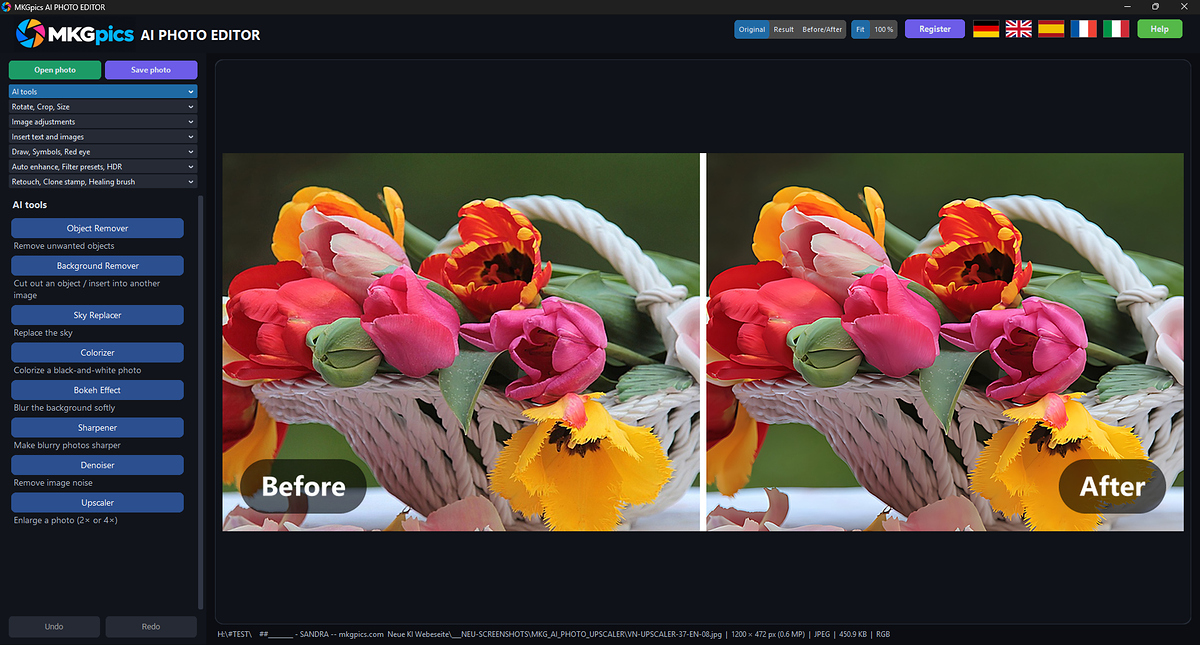
The preview provides separate “Original” and “Result” views for the loaded photograph. Original shows the source before enlargement, while Result shows the processed version currently held in the workspace. Small lettering, hair, textured surfaces, and narrow contours can serve as fixed reference points when switching between the two. The source remains unchanged during the comparison.
A larger pixel grid should not be confused with a photograph that was originally captured at that larger resolution. The processed version is calculated from the information available in the source image. Compression artifacts, weak contours, or missing fine structure in a small file therefore influence what can appear in the enlargement. Comparing the two views shows how the existing source information has been translated into the larger image.
Inspect Enlarged Details in the 100% View
The 100% view displays the selected image at actual pixel scale. A large result normally extends beyond the visible workspace, so only one section can be seen at a time. The visible area can be moved with the mouse to inspect other locations. Narrow lines, small text, hair, fabric, and surface texture can be examined without the reduction used by a fitted overview.
Different subject areas can be checked one after another without changing the processed image. A portrait may be inspected around the eyes and hair, an architectural photo along facade edges, and a product image around labels or material texture. The view changes only the on-screen scale and visible section. It does not alter the result itself or create another processed version.
View the Complete Photo with Fit
Fit places the complete photograph inside the available workspace. This view is intended for the composition, larger surfaces, and the overall appearance of the enlarged image rather than for individual pixel structures. A local detail that appears pronounced at 100% can have far less influence when the full photograph is visible. The complete frame can therefore be assessed without moving across separate image sections.
Switching to Fit does not trigger another calculation. The current result is simply reduced on screen until the whole image fits inside the preview area. Returning to 100% restores actual pixel-scale inspection of a smaller section. Both viewing modes refer to the same processed image and can be changed without creating additional files.
Limit Very Large Results to 80 Megapixels
Processed outputs are limited to a maximum of 80 million pixels. If the selected enlargement would exceed that amount, the program calculates a smaller effective scaling factor for the current source. The displayed output dimensions use this reduced factor before processing begins. A separate notice identifies cases in which the 80 MP limit changes the theoretical target size.
The restriction applies to the complete pixel area rather than to one fixed maximum width or height. A wide panorama can therefore end at different dimensions from an image with a more conventional aspect ratio. Sources whose calculated outputs remain below the maximum are not reduced by this rule. If the factor has to be lowered, width and height are adjusted proportionally so the original aspect ratio is retained.
Open PNG, JPG, JPEG, WebP, and BMP Images
PNG, JPG, JPEG, WebP, and BMP files can be opened as source images. The selected photo becomes the active image for size selection, processing, preview, and later export. PHOTO UPSCALER handles one loaded image per operation rather than assembling several files into a batch. Opening another photo replaces the current source for the next calculation. The list of supported source formats is broader than the available save formats. A BMP can be opened and later written as PNG, while a JPG source can also be saved as WebP after processing. The input extension does not have to be preserved. The output type is selected when the finished result is saved.
Save the Enlarged Image Separately
The processed image can be saved as PNG, JPEG, or WebP. The suggested filename includes an additional suffix so the new version can be distinguished from the source. If the opened original is selected as the destination, the program blocks the overwrite and requests another filename or location. The source file therefore remains available independently of the exported image.
Several versions can be stored from the same starting photo without using an earlier export as the source for the next one. A new version can be produced after another size calculation or after a different Detail Strength setting has been chosen. Returning to the original avoids building a later variant on top of a previously enlarged file. Separate exports can then be compared as independent results from the same source.
Cancel an Enlargement While It Is Running
A running AI calculation can be stopped with “Cancel.” The status area reports the processing state while the active operation is terminated. The loaded photograph remains open after cancellation. A partially calculated intermediate image is not accepted as the finished Result. When the cancellation has completed, the controls become available again. The same source can be processed another time or replaced with another photograph. Files that were saved before the cancelled run remain unchanged. Only the active calculation is stopped.
Functions for Upscaling Images with AI
- Upscale an individual photo with AI
- Double image width and height
- Increase image width and height by factor 4
- Display source and intended output dimensions
- Restrict very large outputs to 80 megapixels
- Adjust Detail Strength from 0 to 100 percent
- Switch between Original and processed Result
- Fit the complete photograph inside the workspace
- Inspect fine image structures at 100% pixel scale
- Move the visible section with the mouse at 100%
- Open PNG, JPG, JPEG, WebP, and BMP source files
- Save the processed image as PNG
- Export the enlarged version as JPEG
- Save the result as WebP
- Prevent the loaded original from being overwritten
- Cancel the current enlargement calculation
Create Several Enlarged Versions from the Same Source Photo
The same original can be used repeatedly to create separate enlarged versions. One file can be calculated at one size, another at the alternative size, and additional versions can use different Detail Strength values after processing. Previously exported images do not have to be reopened as the basis for later attempts. Each new version can begin from the unchanged source instead of inheriting processing from an earlier export. The AI photo upscaler allows enlarged versions to be compared with the unchanged source at their actual pixel dimensions.
This is useful when comparing variants because every saved file can be traced back to the same starting image. Enlarging an already processed export again would make the previous calculation part of the next source, which changes the basis of the comparison. Starting over from the original avoids that extra processing stage. The resulting files can then be compared by their dimensions and by the appearance of their calculated detail without mixing successive enlargement passes.