
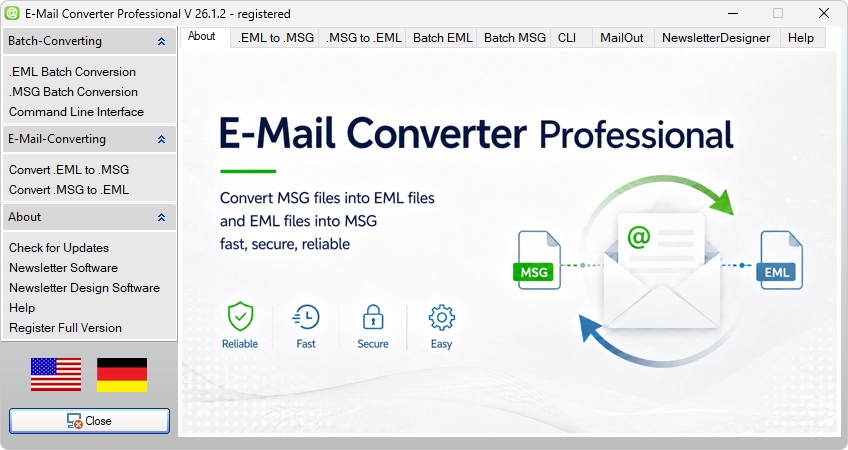
Email Converter Professional can process Outlook MSG files into EML format, but some source files may need closer review. This guide explains how to identify damaged, incomplete, duplicated or problematic MSG files before and after conversion.
This troubleshooting guide is for users who need to understand why some MSG archives behave differently during an Email Converter Professional project. Conversion results can be affected by source file condition, copy history, storage location, permissions or old backup media. These factors usually exist before conversion starts. Outlook MSG files may come from old mailboxes, exported project folders, network drives, USB backups, document management systems or recovered storage devices. Files that were damaged, renamed, partially copied or stored in very long paths may require separate handling. Email Converter Professional can process MSG files into EML format for backup, migration or long-term access. When the source archive contains older or inconsistent material, identify questionable files early so they can be tested, restored from backup or reviewed separately.
Common Problems During MSGtoEML Conversion
Many conversion problems start in the source archive. Some MSG files may be corrupted, incomplete or left over from an interrupted copy process. Others may have spent years on external drives, network shares or backup media where file integrity is uncertain. Storage paths can also interfere with archive handling. Deep folders, very long file names and repeated folder names may create paths that Windows tools, backup systems or file managers handle poorly. This is common when MSG files were saved with long email subjects or copied through several archive layers. Access restrictions are another cause. Files in read-only folders, synchronized cloud folders, locked network paths or restricted locations may not behave like local files. Permission errors and interrupted access can affect only part of the archive.
Damaged or Incomplete MSG Source Files
Some MSG files may already be defective before processing. This can happen after an incomplete copy, storage recovery, failed backup restore or interrupted export. The file may still appear in Windows Explorer while containing no complete readable message. Test suspicious files separately before treating them as archive material. Open the original MSG file in Outlook or another compatible viewer and check whether the message body, headers and attachments are available. If it cannot be opened or appears empty, the source file is likely the problem. For critical files, check whether a better copy exists in another backup, mailbox export or storage location. Restoring a clean MSG file is safer than relying on a broken copy. Mark questionable source files so they are not confused with successfully converted messages.
Long Paths and Problematic File Names
Path and filename issues appear frequently in large email archives because MSG files may be saved with long subjects, customer names, project labels or nested folder structures. A message stored several levels deep can exceed practical path length once the filename is added. Unusual characters add another risk. Email subjects may contain punctuation marks, symbols, copied text, separators or characters that are poor choices for file names. These can complicate copying, synchronization, renaming or processing across systems. Review deeply nested folders and long subject-based names before large MSGtoEML projects. Shorter paths and cleaner names reduce file handling errors and make the resulting EML output easier to organize.
Prepare Difficult Archives for a MSGtoEML Converter
Difficult MSG archives should be prepared before they are processed with Email Converter Professional. Preparation reduces interruptions, skipped files and unclear results by creating a stable working copy, simplifying paths and identifying obvious problem files before the main conversion starts. Start with a backup. Keep an untouched copy of the original MSG archive before moving, renaming or cleaning files. This matters when the archive comes from old drives, network folders, USB storage, backup exports or recovered media. Run a smaller test before the full job. A sample conversion shows whether the source files, paths and storage location are suitable for a larger Email Converter Professional project.
- Make a backup of the original MSG archive before changing or cleaning any files.
- Use a short local path, such as
C:\MSG_Work\, for the working copy. - Test suspicious MSG files separately before including them in the full conversion.
- Remove obvious duplicates if they are clearly unnecessary and already backed up.
- Run a small sample conversion before processing the complete archive.
- Collect failed or questionable files in a separate review folder for later handling.
Move Source Files to a Clean Local Working Folder
Old drives, network folders and complicated backup paths can make file handling unstable. A clean local working folder gives Email Converter Professional a simpler file location and removes dependency on network availability, external media speed or cloud synchronization. Short local paths are easier to process than deeply nested archive locations. A working folder such as C:\MSG_Work\ is easier to manage than a long path with customer, project, backup and export folders stacked together. Copy the source MSG files into the working folder rather than moving the only archive copy. This keeps the original source protected while the working copy is prepared and processed.
Remove Empty, Duplicate or Suspicious Files Before Conversion
Archive cleanup before conversion prevents clearly faulty or unwanted files from entering the main Email Converter Professional workflow. Empty MSG files, duplicate-looking messages and files with strange dates should be reviewed before conversion. File size is a first signal. An extremely small MSG file may be incomplete or empty. Duplicate names, repeated export copies and files appearing in several folders without context can create unnecessary output and make the EML archive harder to evaluate. Open suspicious files before conversion when possible. If an MSG file does not open, shows no readable message or has a file date that suggests a failed copy, mark it for separate review. Cleanup should be careful when the archive contains business records, customer messages or legal communication.
| Problem | Possible Cause | Practical Fix |
|---|---|---|
| Failed Conversion | The original MSG file may be damaged, incomplete or copied from unreliable backup media. | Open the MSG file separately, restore a clean copy from backup and repeat the conversion for that file. |
| Missing Output Files | Some source files may have been skipped because of access limits, long paths or interrupted storage access. | Compare source and output counts, shorten folder paths and run the affected folder again with Email Converter Professional. |
| Wrong Characters | Email subjects, sender names or message text may contain special characters, encoding issues or symbols from older systems. | Check the original MSG file, review the converted EML in another viewer and rename affected files with safe characters if needed. |
| Duplicate Output Names | Several MSG files may use the same subject line, sender name or export-based filename pattern. | Add dates, sender names or numbering to the output names so each converted EML file remains unique. |
| Inaccessible Source Folders | The source folder may be read-only, locked by another program, stored on a network path or restricted by permissions. | Copy the MSG archive to a local working folder, check folder permissions and close programs that may lock the files. |
Create a Failed-File Review Process with Email Converter Professional
If some files still fail or look suspicious after conversion, handle them through a separate failed-file review process. Do not mix them into the approved archive without documentation. A separate list helps determine whether another conversion attempt is enough or manual inspection is required. Collect failed files in a dedicated folder or list with source path, filename, error symptom and review status. This prevents repeated testing without progress and shows whether failures belong to one folder, customer, year or storage source. After the first review, decide whether to repeat conversion for selected files, restore cleaner source copies from backup or escalate business-critical messages for manual review. Treating failed items as their own workstream keeps the main archive easier to approve.
- Corrupted MSG files that were already damaged before processing
- Incomplete file copies from interrupted transfers or failed backups
- Long folder paths that may exceed practical Windows path limits
- Duplicate filenames that make source and output files harder to identify
- Permission errors caused by restricted folders, locked files or read-only storage
- Old backup media with unreliable or partially readable archive content
- Unusual characters in folder names, file names or exported message subjects
Separate Technical Errors from Content Problems
Technical errors and content problems require different handling. A technical error occurs when an MSG file does not convert, cannot be accessed or produces no usable EML output. This points to file damage, permission restrictions, path issues or unavailable storage. A content problem occurs when the file converts but the result shows missing text, broken formatting, unreadable characters or missing attachments. The EML file exists, but the content may not be reliable enough for storage, migration or business reference. Separating these categories helps define the next step. Technical errors may need a cleaner source file, shorter path or restored backup. Content problems require comparison with the original MSG file and a decision on whether the converted message can be accepted.
Decide When Manual Review Is Required
Manual review is required when a problematic message has business, legal or financial relevance. Emails connected to contracts, invoices, customer disputes, legal cases, payment approvals, complaints, warranty issues or compliance records should not be approved only because an EML file exists. The review should decide whether the message can still serve its purpose. For critical records, compare the MSG source, EML output and any available backup copy before deciding what to keep; checks with MSGtoEML conversion software for problem files help separate minor conversion issues from files that need manual review. A legal email must preserve the relevant communication context. An invoice message must keep the billing document available. A customer dispute email must remain readable enough to explain the history and responsibility. For low-value or duplicated messages, a note may be enough. For critical records, compare the MSG source, EML output and any available backup copy before deciding what to keep.